Microsoft Office
Microsoft Office, or Microsoft 365, includes multiple tools that will help you complete
your classwork and communicate with your instructors and the college as a whole. Click
the links to jump to a specific tool, or scroll through to learn about all the tools
provided to you.
How to Login to Microsoft Office (free for all IVC students)
As an IVC student, you have access to the full version of Microsoft Office. You can
use these tools on the web without downloading or installing anything, or you can
choose to download the software onto your computer. Follow the steps below to login
to Microsoft Office.
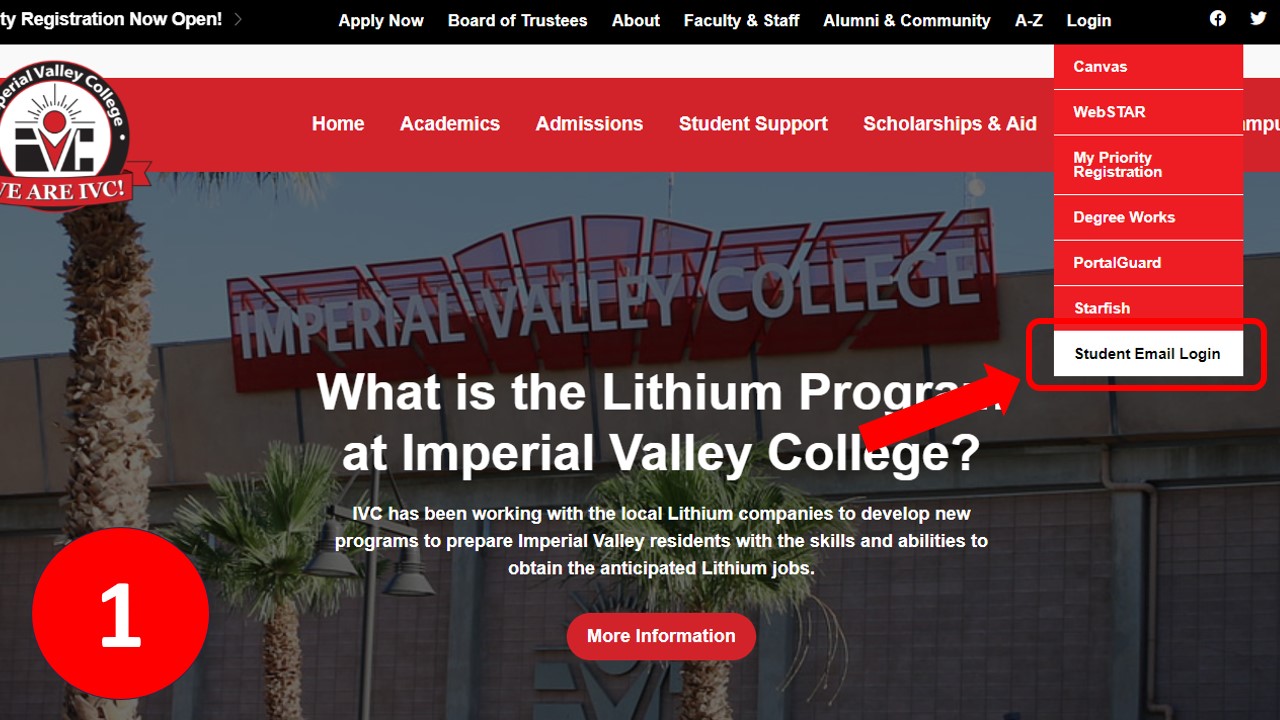
- Go to your IVC student email from the IVC homepage. or from outlook.office365.com.
- from the IVC homepage, imperial.edu, find the Login menu at the top right.
- Select Student Email Login
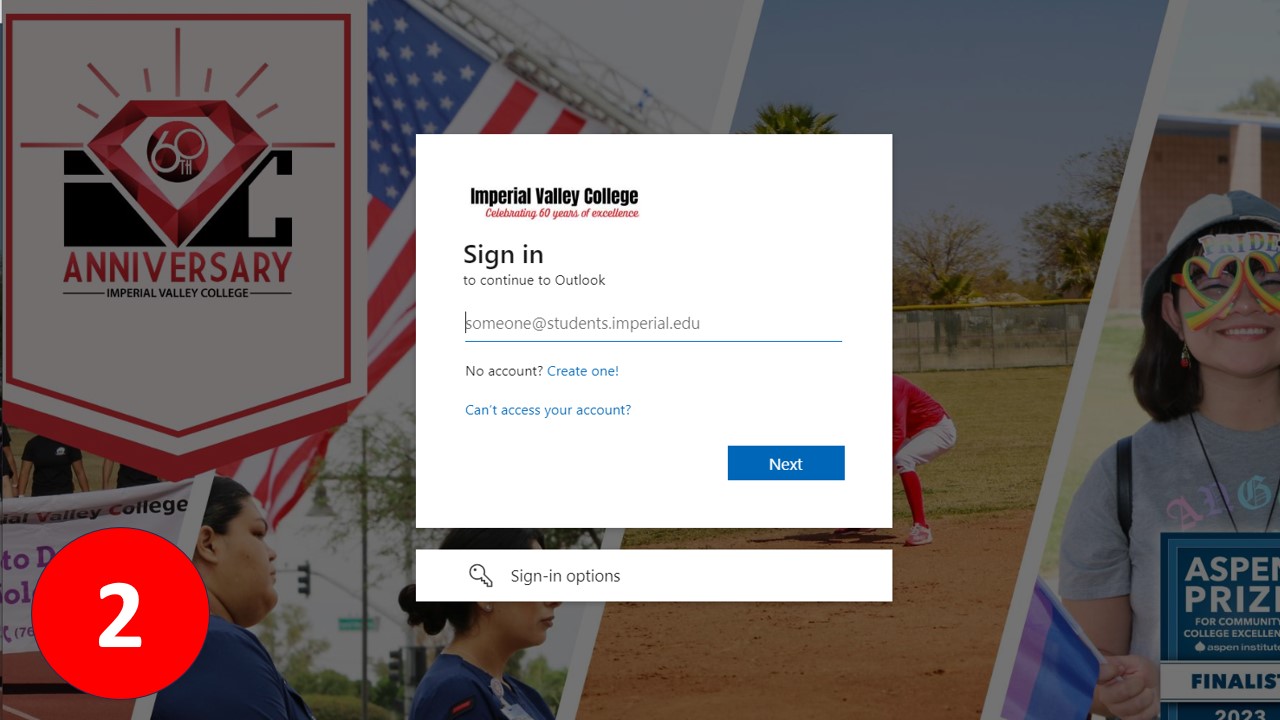
- Sign in using your IVC student email address and password.
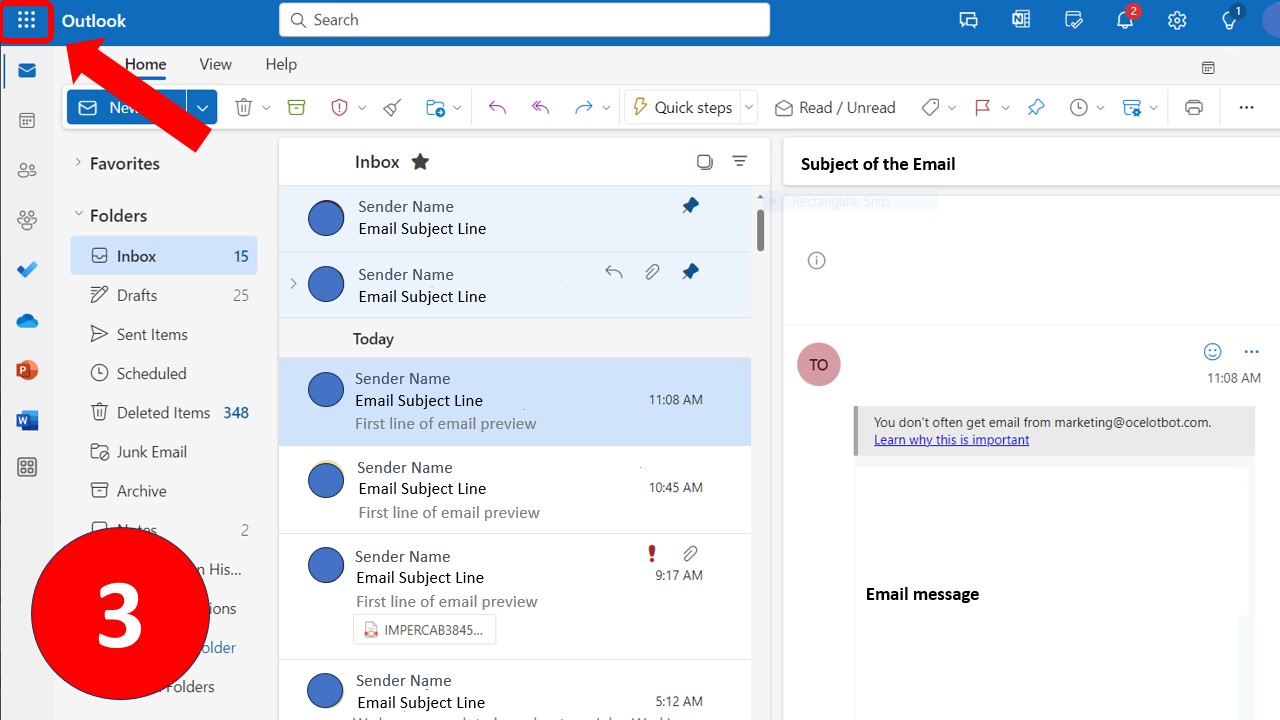
- You'll be taken to Outlook (email) as the default app.
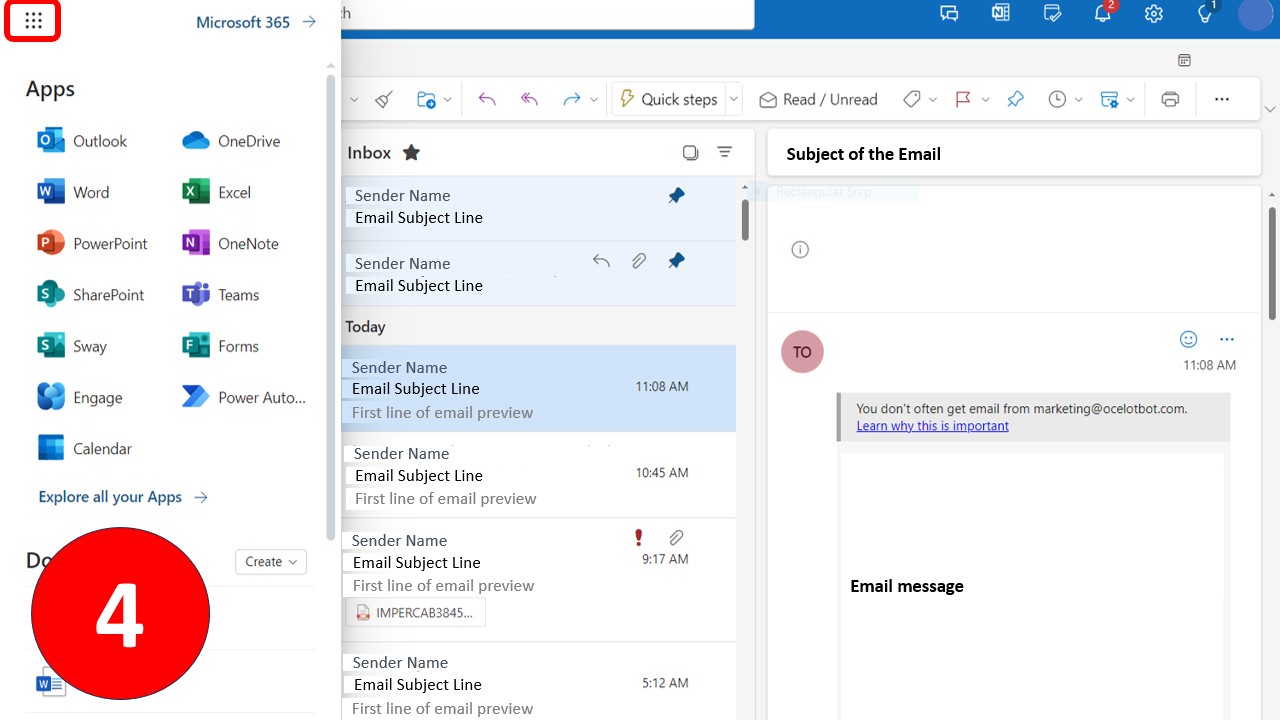
- Click the grid menu button at the top left to select other Microsoft Office apps
back to top
Outlook - Email
Outlook is where you'll find your IVC Student Email. You can send, reply, and read
emails and messages. This is where all of your IVC information will be sent, including
information about your courses and financial aid, so it's important to log in and
check your Outlook email regularly.
How to Send an Email Using Your IVC Student Email
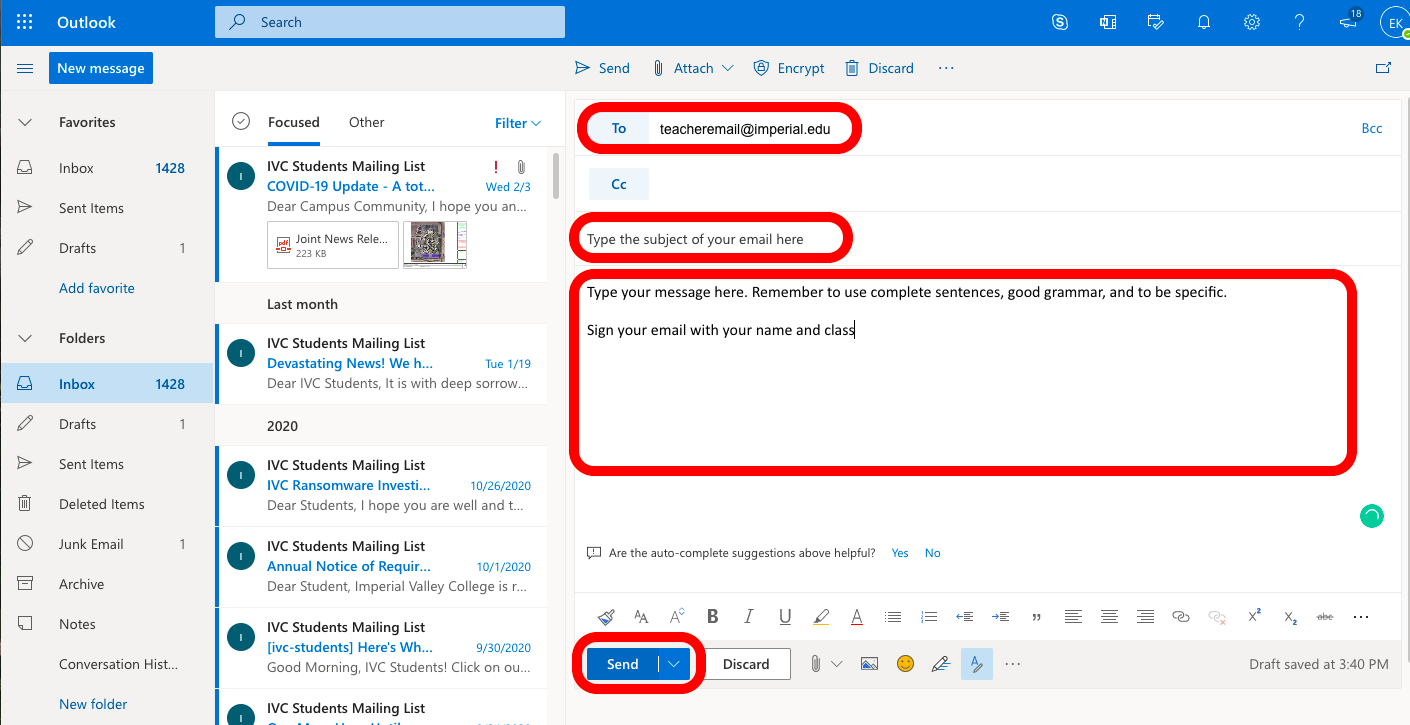
- Login to Microsoft Office following the steps above
- Click the “New Mail” button at the top left
- Type your recipient, subject and message.
- Proofread and click send.
How to Use Outlook to Send and Reply to Emails
back to top
Word - Documents
Word is a word processing program for creating and editing documents, like letters,
reports, and resumes. It's where you type, format text, and add images. Think of it
as a digital typewriter and document editor. Often, instructors will ask for papers
and essays to be typed, formatted, and saved as a Word Document.
How to Log in to Microsoft Word
- Login to Microsoft Office following the steps above
- Click the Word icon from the grid menu at the top left
- Select "Blank Document" or select a template to start a document
- Type your Document
How to Use Word to Create and Format Documents
View the transcript for this video.
back to top
PowerPoint - presentations and slideshows
PowerPoint is a presentation tool. PowerPoint is used to create slideshows for presentations.
It helps you organize information, add visuals, and create a visually appealing narrative.
You may use PowerPoint to create visual aids for a speech or class presentation.
How to Login to Microsoft PowerPoint
- Login to Microsoft Office following the steps above
- Click the PowerPoint icon from the grid menu at the top left
- Select "Blank Presentation" or select a template to get started
- Create each slide in your presentation
How to Use PowerPoint to Create a SlideShow
View the transcript for "Create a Presentation" video. or the transcript for "Add, Rearrange, Duplicate, and Delete Slides" video.
Get more help using PowerPoint from the Microsoft PowerPoint Quick-Start Guide.
back to top
Excel
Excel is a spreadsheet program. Excel is like a digital record, account book, or table.
It's used for managing and analyzing data, creating budgets, and making calculations.
It's great for tasks involving numbers, like creating lists, tracking expenses, or
making charts and graphs.
How to Login to Microsoft Excel
- Login to Microsoft Office following the steps above
- Click the Excel icon from the grid menu at the top left
- Select "Blank Workbook" or select a template to get started
- Add data, charts, formulas, or whatever you need to your spreadsheet.
How to Use Excel to Create Spreadsheets
View the transcript for the "Create a Workbook in Excel" video.
back to top
How to Download Microsoft Office (free for all IVC students)
As an IVC student, you have access to the full version of Microsoft Office. You can
use these tools on the web without downloading or installing anything, or you can
choose to download the software onto your computer. See the video below to learn more
about downloading.
