Where we foster excellence in education that challenges students of every background
to develop their intellect, character, and abilities; to assist students in achieving
their educational and career goals; and to be responsive to the greater community.
Canvas is our online classroom. Most of your instructors will use Canvas for a variety
of things including grades, class messages, individual messages, assignment submissions,
and more. If you have a fully online class, Canvas will be your classroom. If you
have a class in any other format, it is likely that your instructor will also use
Canvas.
How to Log In to Canvas
This video will show you how to log in to Canvas.
These are the steps you need to follow to log in to Canvas.
Find the "Login" menu item on the top right of the page
Click on Canvas
Input your IVC Student Email Address and IVC Password
If you don't know your IVC Student Email and/or IVC Password contact Admissions and
Records at 760-355-6101
How to Navigate Canvas
Learn the Canvas basics by following the video tutorials below.
Canvas Student Overview
Canvas is your online classroom. This is where you will find your online courses,
and even some of your face-to-face courses. When you first login, you'll see the dashboard.
Your courses will be displayed on your Canvas dashboard as colored cards. Click the
card to enter the course "classroom."
Inside the course, you'll see the Course Navigation Menu located on the left side
of every page in Canvas. Course Navigation links provide quick access to frequently
used Canvas features. Common links include Announcements, Modules (assignments), Grades,
and the Syllabus.
The Canvas Student App
The Canvas App is available for Apple and Android devices at no cost. The Canvas Student
App can be very convenient, but it is important to know that Canvas runs best from
a desktop or laptop computer.
Communication Features in canvas - Inbox, Announcements, and Notifications
The Announcements section in Canvas allows you to view and filter announcements in
your course. You can also receive new announcements via Canvas notifications, view
announcements on the Recent Activity Dashboard, or view announcements in the To Do
list.
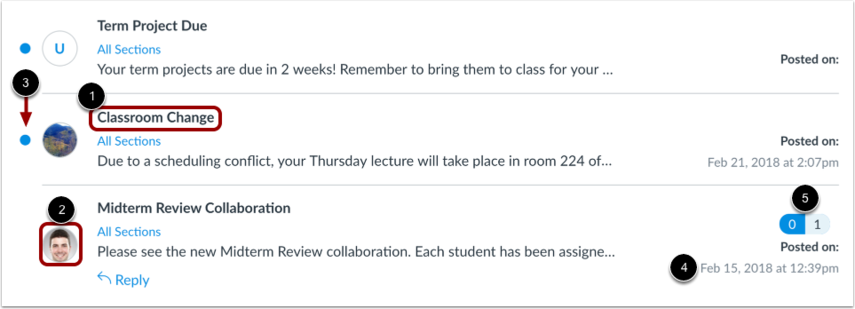
In Announcements, you can view all the announcements in your course. Announcements
are listed in reverse chronological order with the newest appearing first and the
older announcements appearing towards the bottom. Each announcement includes the title
of the announcement [1], the picture of the user who posted the announcement [2],
an unread indicator near unread announcements [3], the announcement postdate [4],
and the number of unread/total replies in the announcement [5].Learn more about Announcements.
The Canvas Inbox
The Inbox is used to message your instructor, Teacher's Assistant, Embedded Tutor,
and other students in the class. When you view the Inbox, you will notice that it
is split into two panels and displays messages chronologically. You can view and reply
to conversations and sort them by course or inbox type. Learn more about the Inbox.
Notes:
If you right-click or option-click on the Inbox link, you can open your Inbox in a
new browser tab to keep it handy while you are doing other tasks in Canvas.
Once a course has concluded, you cannot message users in that course.
Canvas Notifications
Canvas sends automatic notifications to each student about their course. Canvas is
set up with some default notification preferences. However, you can change the default
settings by setting your own notification preferences. These preferences only apply
to you; they are not used to control how course updates are sent to other users. To
learn more about each notification, default settings, and notification triggers, view
the Canvas Notifications PDFor click here to learn more about Canvas notifications
Assignments in Canvas - Assignments, Discussions, and Quizzes
You can submit online Assignments in Canvas using several submission types. Your instructor
will indicate what kind of online submissions they want you to use. You may also have
the option to resubmit assignments if your instructor allows.
Quizzes
To begin a quiz, click the Take the Quiz button. Complete the quiz per your instructor's instructions. Quizzes will either have all
the questions on one page, or each question will be shownone at a time.
There are several different question types in Canvas that your professors may choose
to employ, from True/False to Essay format. Questions can vary byquestion type. Each question will show in the top right corner the point value of
the question. Each question will be divided from others by a box surrounding the question
and answers.
Quizzes may have a time limit and specific availability dates. Be sure to look carefully
at the information at the top of the quiz before you begin.
Canvas will save your quiz as you go through it. When you are finished, submit your quiz and view the quiz results to find out your score. Learn more about Quizzes
Discussions
Canvas provides an integrated system for class discussions, allowing both instructors
and students to contribute to as many discussion topics as desired. Discussions allows
for interactive communication between two or more people; students can participate
in a conversation with an entire class or group.
Discussions can be created as an assignment for grading purposes, or simply serve
as a forum for topical and current events.